

Thinking
Feb 1, 2026
How to Develop for Google AI Glasses with Android XR
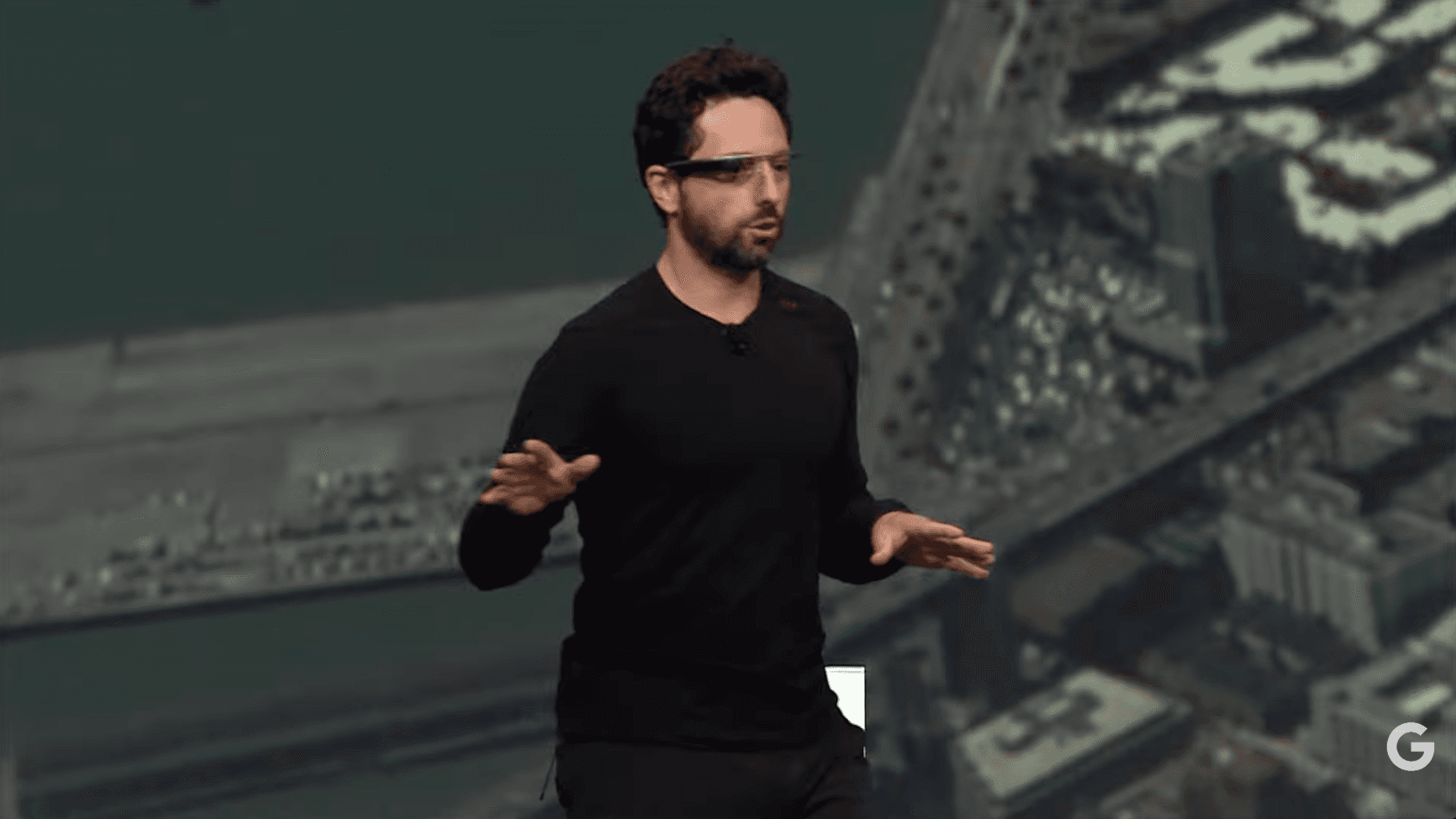
Google founder Sergey Brin announced the Google Glasses in 2012. For context, this was before Google Drive [2012], the Pixel Phone [2016] and these acquisitions: Motorola, Waze, Nest, Boston Dynamics, Firebase and DeepMind... It's been a long time!
That announcement, posted to Google+ ( an unlucky Kondratiev wave surfer in the Digg cohort ) was titled 'Project Glass: One Day'.
What's possible today
14 years later, Google have now released an SDK to power the next phase of Google Glass - which is AI Glasses, powered by Android XR.
Having been working on ideas around Google's AI Glasses for a while now, we want to share practical insights into what's possible with the tech today.
Understanding Android XR libraries
To get under the hood of these glasses, you first need to understand the Android operating system and which libraries Google has released for development:
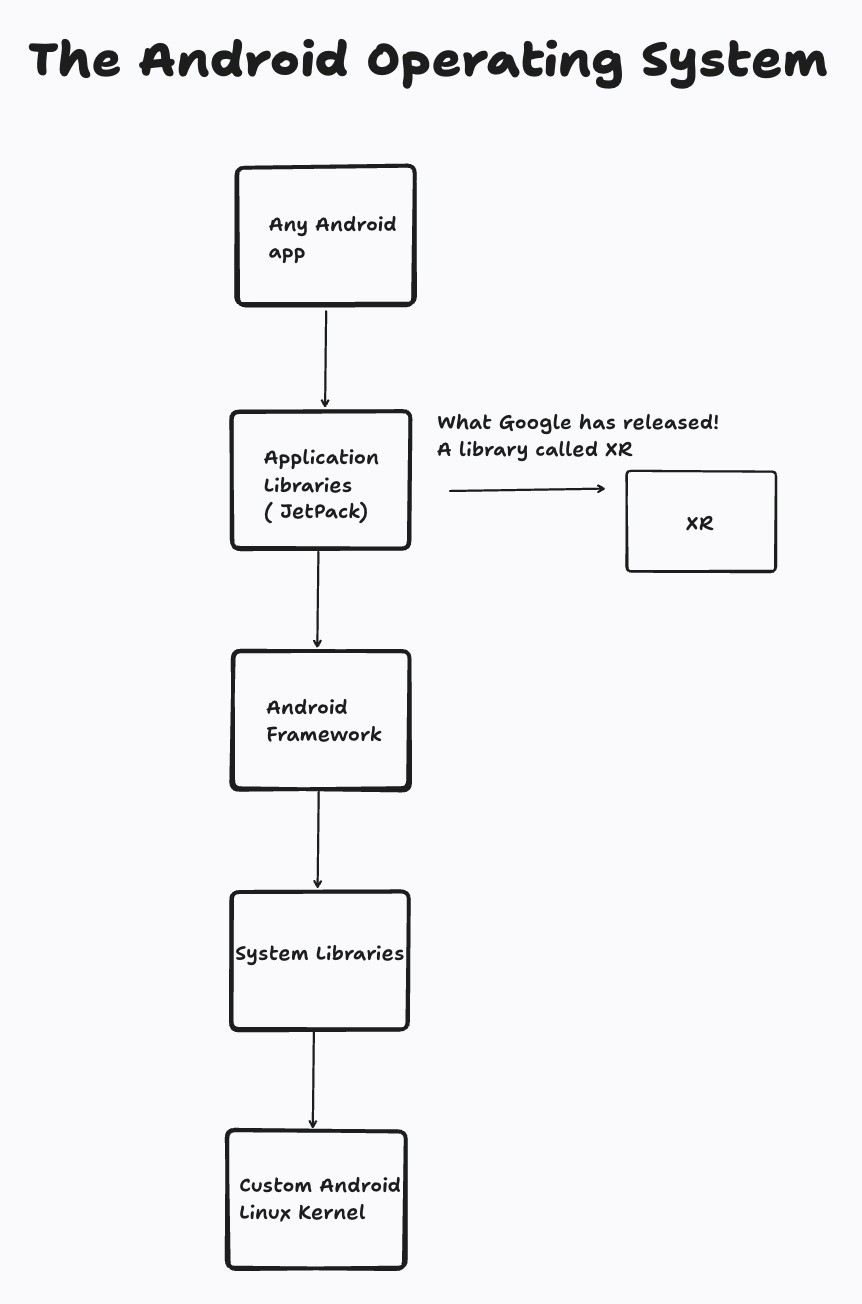
Android developers are familiar with using Application Libraries, which Google rebranded as Jetpack at I/O 2018. An example of a primitive Jetpack library is CameraX - which is stored at androidx.camera.core.camera . It is important to make note of the androidx namespace, as that is where all the libraries live, including XR - the library for integrating with the glasses themselves.
Just like how you use the CameraX library to develop Camera based applications, the XR library is used to develop Glasses based applications.
How to go about Phone to Glasses?
Simple. The Google AI glasses can be reached via one canonical API. This API returns the context of the glasses - a reference to them, which you can call methods on.
val glassesContext = ProjectedContext.createProjectedDeviceContext(phoneContext)
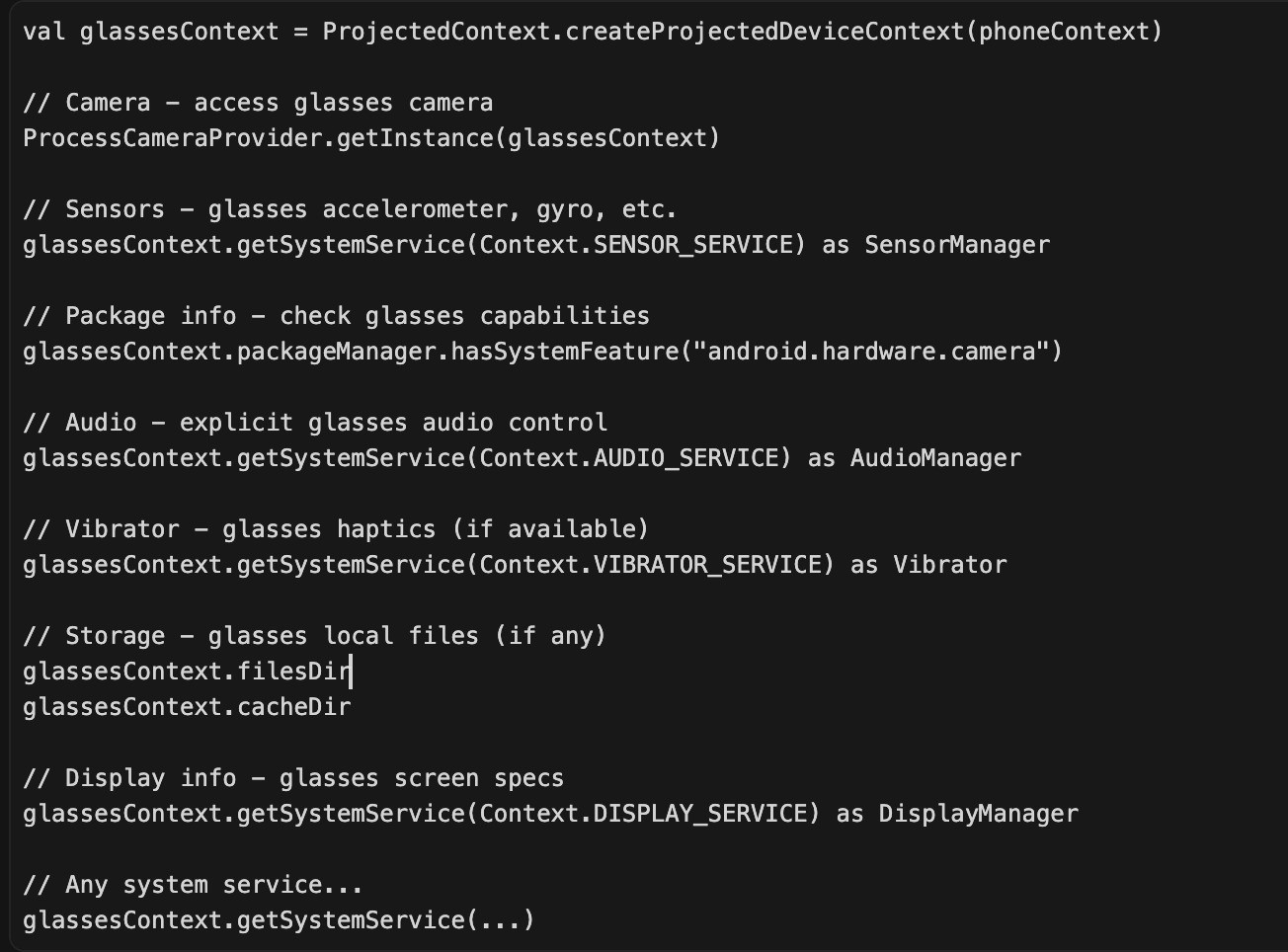
Since we have the context, we can call any context taking libraries on our new variable glassesContext. I've asked Cursor to generate me a subset of the methods we can use, which includes sending data up to sensors, triggering photos from the phone & more.
How to go about Glasses to Phone?
This starts with the Android Manifest file - a file which runs before the program starts. You must link two attributes within it together:
1)`android:requiredDisplayCategory="xr_projected" ``
which tells Android you are connecting to the glasses, you would do similar to tell Android you are building a car app, using an attribute such as android:name="androidx.car.app.category.MEDIA"
2)`android:name=".glasses.GlassesActivity"
which tells Android to link the class name GlassesActivity into a context to the glasses. The GlassesActivity becomes the context, and you can now run any of the APIs that take in context. Lots were shown in the above image, such as accessing the camera & sensors!
Data transfer between devices is handled via onReceive and sendBroadcast on a context - which we now know how to create on both the phone & glasses.
Super Spex - coming soon
Now back to building Super Spex!
Blogs